Shadow Analysis (Sample-70)
Overview
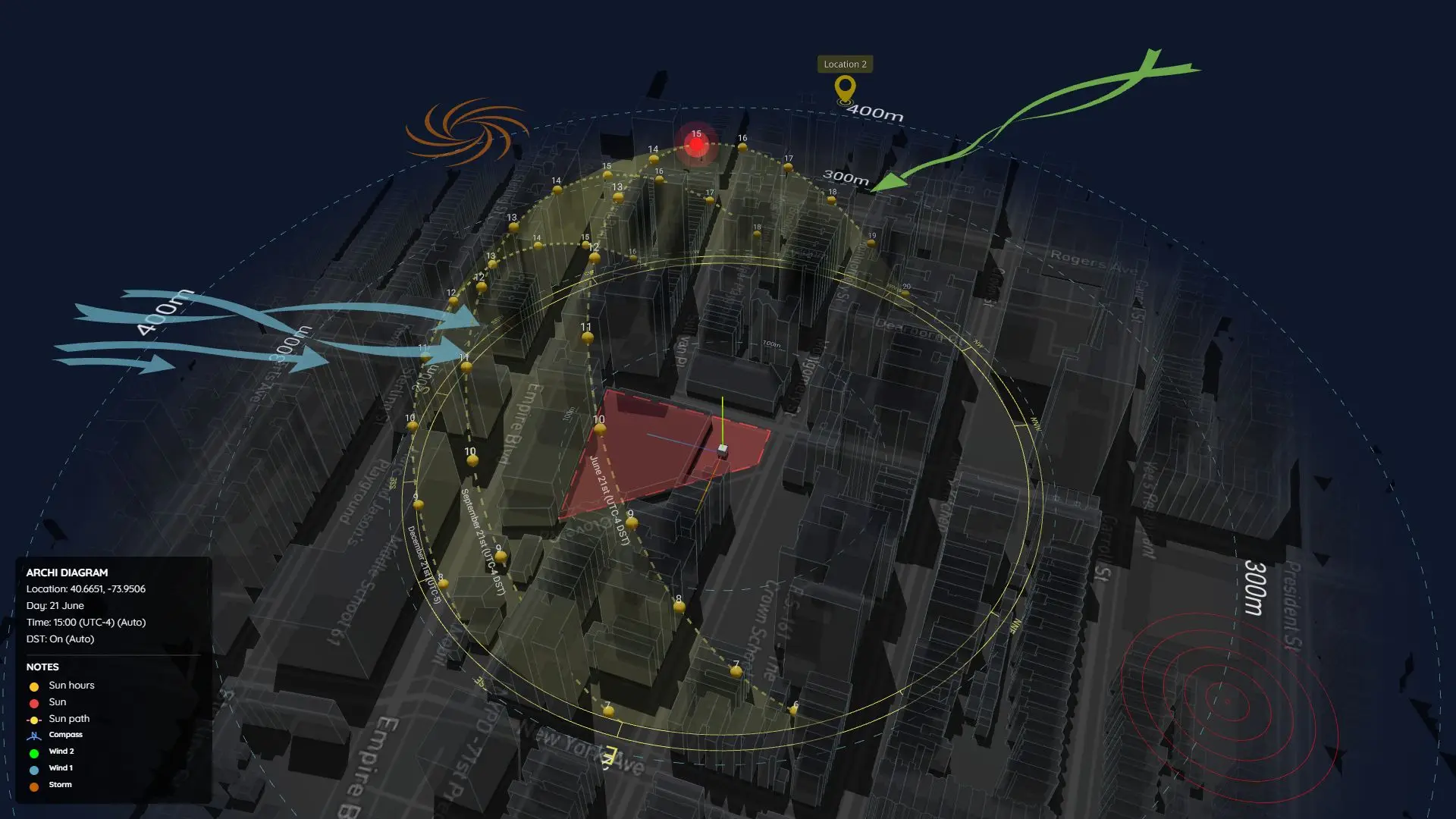
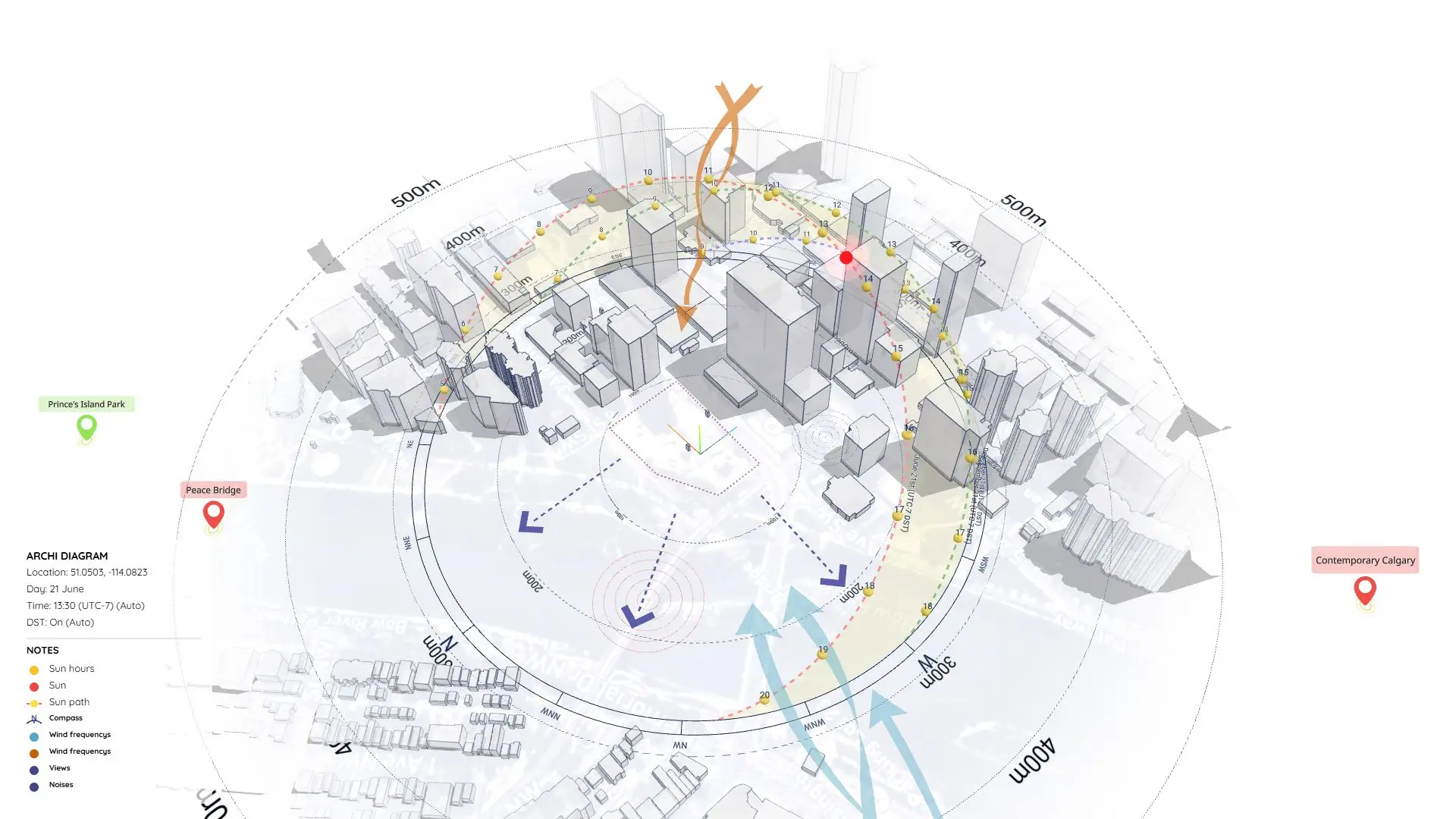
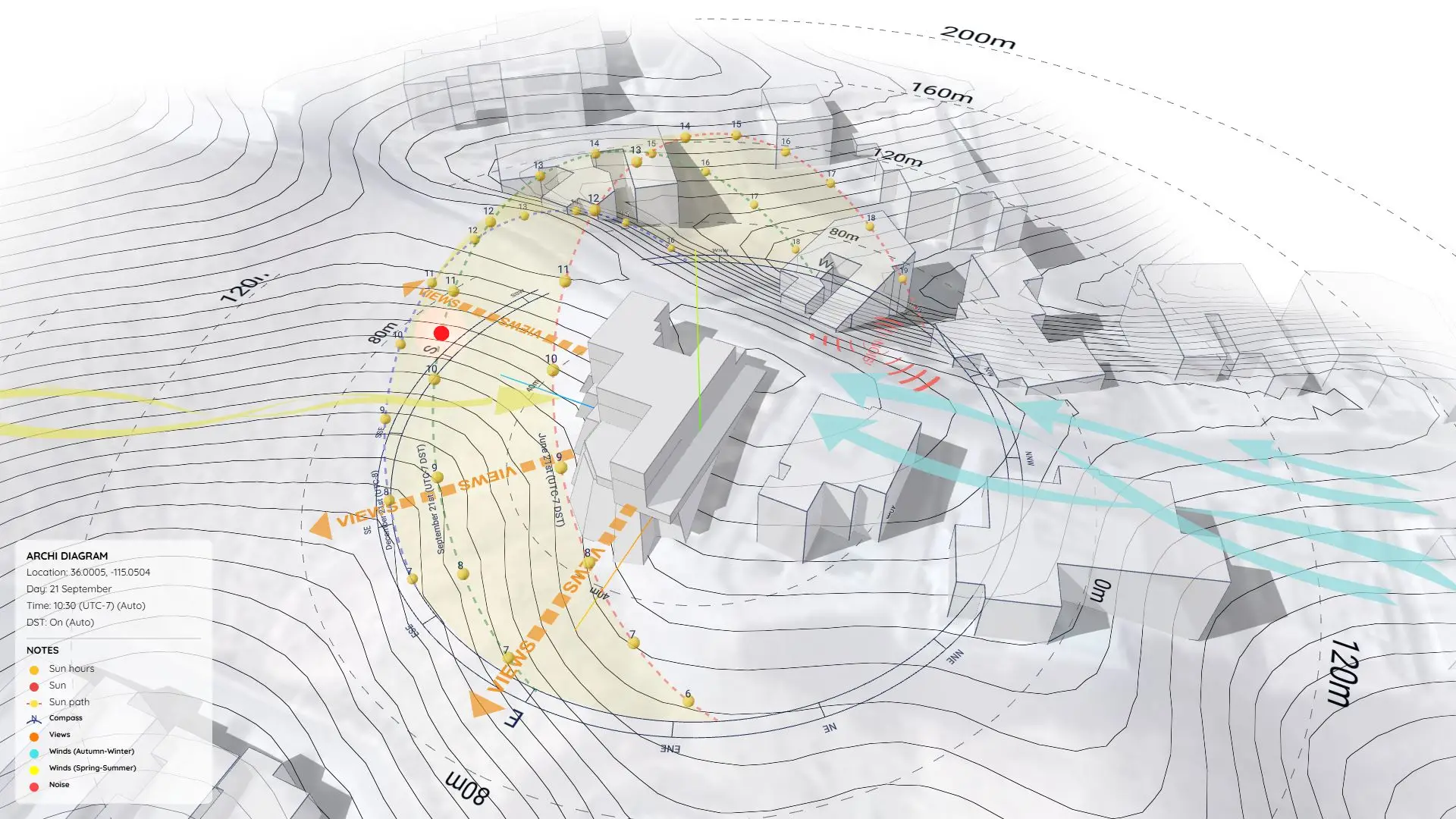
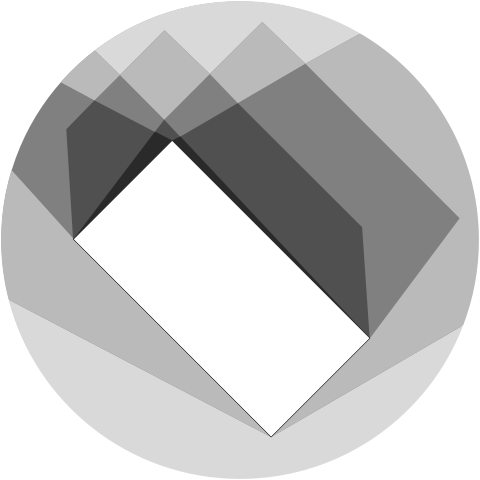
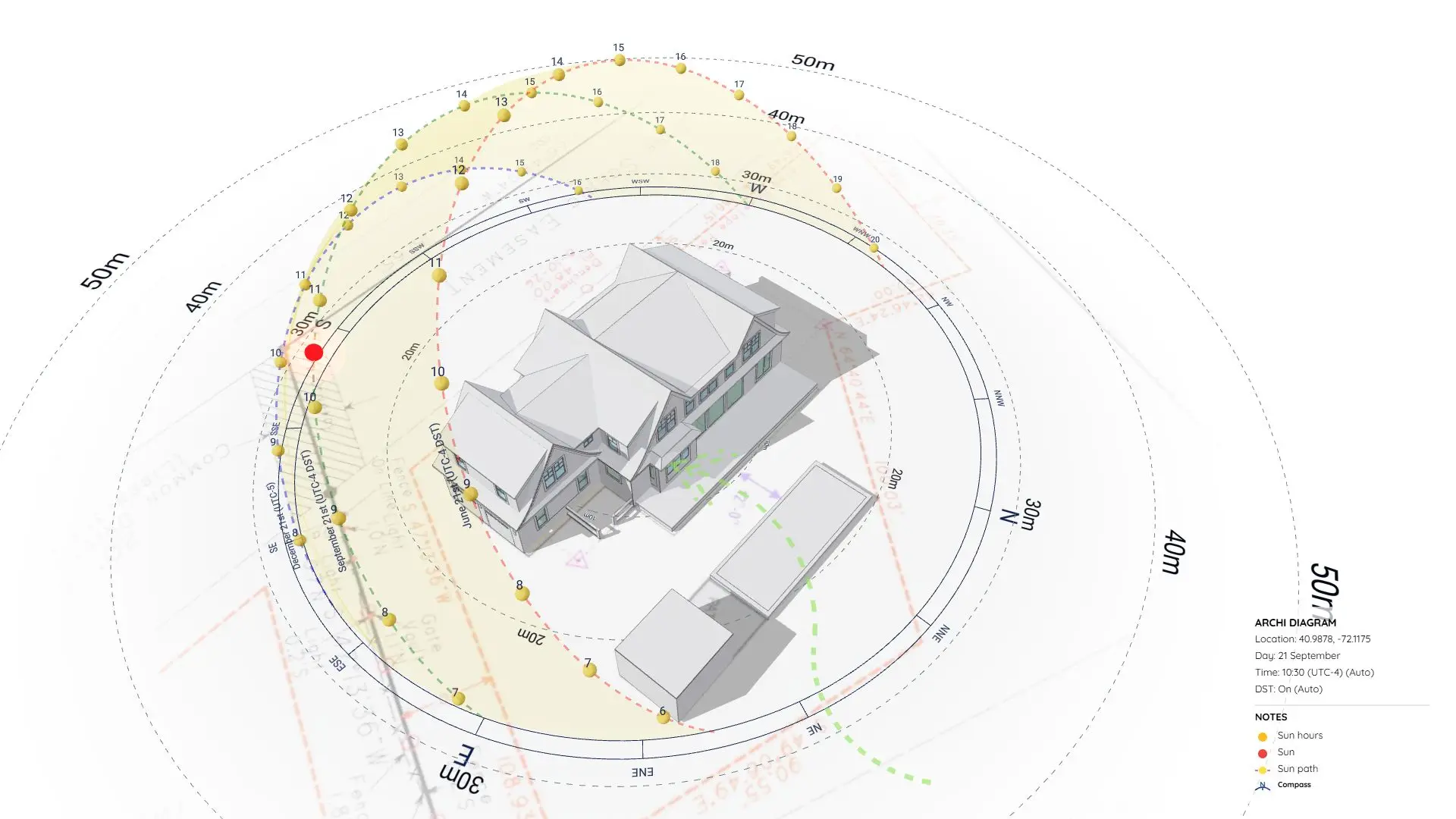
Template and workflow demonstration for accurate shadow analysis using the ArchiDiagram App. Evaluate solar exposure, seasonal shadows, and context impact directly in 3D.
How It’s Made
In the video tutorial, I walk you through my exact workflow for creating this diagram using the ArchiDiagram app. From setting up the context to applying the final visual tweaks, you’ll see the entire process.
Step-by-Step Guide with ArchiDiagram App
https://www.youtube.com/shorts/dl3mnmTp7Nk
This diagram was generated using the web-based ArchiDiagram App. Here is how you can create a similar diagram for your own project in just 4 simple steps:
-
Step 1: Launch the App & Select Express Mode
Go to app.archidiagram.com, click Create New, and select Express Mode for fast, automated diagram generation. -
Step 2: Define Location, Theme & Units
Enter the coordinates or physical address of your project site. Choose either Light or Dark theme—both look great, and you can switch between them at any time directly in the app. Select your preferred distance units (metric or imperial). -
Step 3: Import Your 3D Building Model (
.glb)
Once the app finishes calculating your site data, it will automatically render the 3D map, accurate solar sun path, and prevailing wind directions.- Simplify your architectural model and convert it to
*.glbformat (keep file size under 10 MB for best performance). - Optimization tip: If your model file is still too large, upload it to gltf.report to easily compress meshes and textures before importing.
- Simplify your architectural model and convert it to
-
Step 4: Analyze, Render & Export
You’re done! Scrub through different times of day and seasons to evaluate real-time shadow casting, then export high-resolution images or smooth video animations whenever you’re ready.
Open Project: You can explore this exact project and modify it yourself.